PH8124
Lecture 7: Escaping. Quotes. Handling processes and jobs.
Last update: 20260408-1

Table of Contents
1. Escaping: \
Some characters in Bash have a special meaning. As an elementary example:
echo $Var
would print the content of the variable named Var since the variable is preceded with the special character $, but $ itself would not appear in the printout. To see also the special character $ in the printout, we need to escape (or kill) its special meaning with the backslash character \.
The escaping mechanism in Bash is illustrated in the following example:
Var=44
echo $Var
echo \$Var
The above code snippet produces the following output:
44
$Var
It is possible in the same way to escape the special meaning of any other special character, and in any other context (not necessarily only in their printout, as demonstrated here). If there are multiple special characters in the input expression, they can be escaped one by one with a backslash \.
As another example, we consider the double quotes "...", which also have a special meaning in Bash (clarified in the next section!) and are not printed by default:
$ echo "Hi "there""
Hi there # no quotes in the printout
However, we can escape the special meaning of two inner-most quotes, and then they will show up in the printout:
$ echo "Hi \"there\""
Hi "there"
Finally, we can also escape the special meaning of two outer-most quotes:
$ echo \"Hi \"there\"\"
"Hi "there""
As another example, we compare:
$ echo "Today is: $(date)"
Sat Jun  6 19:24:20 CEST 2020
with
$ echo "Today is: \$(date)"
Today is: $(date)
In the second example the command date was not executed, because the command substitution operator was escaped.
We have already seen that in Bash, the command input is terminated either with semicolon ; or with the new line. Frequently, the command input needs to span over a few lines in the terminal, and in order to handle such a case, we need to escape the end of the line, i.e. we need to kill the special meaning of a new line. To achieve that, it suffices to place backslash \ at the very end of the line:
echo "Welcome \
to \
the \
lecture PH8124."
This produces the one-line output:
Welcome to the lecture PH8124.
When used to escape the new line, backslash \ must be the very last character on that line. The frequent mistake occurs when \ is followed by an empty character because then it will merely escape the special meaning of an empty character, and not the special meaning of a new line.
Alternatively, we can escape the meaning of special characters with strong (single) quotes '...', which is the topic of the next section.
2. Quotes: '...' and "..."
Strong (single) quotes
In complex expressions, that contain a huge number of special characters, it becomes quickly impractical to escape the special meaning of every special character separately with \. Instead, they can be escaped all in one go by embedding the whole expression within strong (single) quotes '...' . This is the primary use case of strong quotes, and their meaning can be literally understood with the following phrase: what you see is what you get.
For instance:
Var1=44
Var2=440
echo '$Var1   $Var2'
The printout is literally:
$Var1 $Var2
Neither variable was replaced in the printout with its content, because the special meaning of both $ was killed in one go with strong quotes, and the exact number of empty characters was also preserved in the printout.
Strong quotes are used frequently for the file or directory whose name contains empty characters:
ls 'crazy name'
Without strong quotes, the command ls would interpret ‘crazy’ and ‘name’ separately, as two different arguments.
To illustrate the importance of strong quotes, consider the following example:
echo 100 > 10 # WRONG!!
We wanted to print a literal inequality 100 > 10 on the screen but the above code snippet did not produce any printout on the screen. Instead, something completely different happened: echo printed only 100 but that was redirected immediately into the file named 10. We can circumvent this problem with:
$ echo '100 > 10'
100 > 10
Single quotes may not occur between single quotes, even when preceded by a backslash.
As the last remark, strong quotes appear in a rarely used context, which is outlined here just for completeness’s sake. Some characters cannot be represented with literal syntax — instead, we need to use backslash-escaped characters for them. The best examples are new line and tab space, which are represented with ‘\n’ and ‘\t’, respectively. However, neither Bash nor a lot of Linux commands by default interpret such backslash-escaped characters. For instance:
echo "Hi\nthere"
prints literally:
Hi\nthere
We need to instruct echo to interpret backslash-escaped characters by supplying a flag ‘-e’:
echo -e "Hi\nthere"
The printout is now:
Hi
there
Similarly:
echo -e "Hi\tthere"
prints the horizontal tab space:
Hi
there
and so on.
In general, we can force Bash to interpret directly the backslash-escaped characters by using the following generic syntax:
$'whatever'
With this syntax, we do not rely any longer on the details of command implementation, and whether there exists some option, like ‘-e’ for echo, which will instruct the command to interpret backslash-escaped characters. For instance:
echo $'Hi\nthere'
will print:
Hi
there
Now Bash has interpreted the special meaning of ‘\n’ character, not echo.
Example: Prompt the user with the following multi-line question in the read command:
Dear User,
do you want to continue [Y/n]?
The problem here is that the command read, unlike echo, does not have a specialized flag to interpret the backslash-escaped characters. Therefore, the simplest solution is to use $ in combination with single quotes:
read -p $'Dear User,\ndo you want to continue [Y/n]? ' Answer
In the next section, we clarify the meaning of weak (double) quotes "...".
Weak (double) quotes
Unlike the strong quotes, the weak (double) quotes "..." preserve the special meaning of some special characters, while the special meaning of all others is stripped off. Just like within single quotes, within double quotes the empty character does not retain its special meaning, i.e. it is not any longer the default field separator. The exact number of empty characters is preserved within weak quotes:
echo "a b    c"
echo  a b    c
The output of the above two lines is:
a b    c
a b c
We can now compare the effect of two types of quotes in the following example:
Var1=44
Var2=440
-
no quotes:
$ echo $Var1 $Var2 44 440 -
strong quotes:
$ echo '$Var1 $Var2' $Var1 $Var2 -
weak quotes:
$ echo "$Var1   $Var2"
44   440
In each case, we got a different result. Within double quotes, the content of variables is obtained with the special character $, and the exact number of empty characters is preserved.
The special meaning of the following special characters or constructs is preserved within weak quotes "...":
$: referencing the content of a variable$( ... ): command substitution operator$(( ... )): arithmetic expression evaluation\: backslash preserves its special meaning within double quotes only in some cases, for instance, when it is followed by$,",\, or newline.
Since this is a common mistake, we stress that tilde ~ as a shortcut for a home directory does not preserve that special meaning within quotes, instead, within quotes we have to use ${HOME} to get the full path to the home directory:
$ echo 'Home directory: ~'
Home directory: ~
$ echo "Home directory: ~"
Home directory: ~ # yes, also within weak quotes ~ loses its special meaning!!
$ echo "Home directory: ${HOME}"
Home directory: /home/abilandz
Nested double quotes are allowed as long as the inner ones are escaped with \ . For instance,
echo "\"test\""
prints
"test"
as expected. On the other hand, single quotes have no special meaning within double quotes:
Var=44
echo "'$Var'"
prints
'44'
To memorize the rules easier, to leading order only the Bash constructs which begin with $ or \ keep their special meanings within double quotes.
Finally, we consider the example when we initialize a variable with the content of some file:
Var=$(< someFile)
Only the following syntax will correctly recover the content of the original file:
echo "$Var"
On the other hand, if we drop weak quotes,
echo $Var
this version will strip off from each line the trailing hidden new line character ‘\n’, and the printout is scrambled.
To quote or not to quote: As a rule of thumb, and whenever in doubt, it is always safer to use weak quotes than not to quote.
3. Handling processes and jobs
In the Linux world, an executable stored on a disk is called a program. Loosely speaking, the program loaded into the computer’s memory and running is called a process. On the other hand, job is more specifically a process that is started by a shell. A group of processes launched from a shell can also be considered as a job. Therefore, a job is a shell-only concept, while a process is a more general, system-wide, concept. There are specific Bash and Linux commands that keep track only of jobs launched from the current shell, but there are also commands that keep track of all processes running on the computer. It is very important to understand the difference between processes and jobs, and in which context which commands can be used for their handling.
Jobs launched from the shell can be divided into two important groups: foreground and background jobs. Foreground jobs are jobs that have control over the terminal, i.e. while they are running nothing else can be done in the current terminal session by the user. The control over the terminal is regained only when the foreground job has finished its execution. Background jobs are jobs that do not have control over the terminal during their execution. They are typically started on multicore machines, when the parallelization of jobs makes perfect sense and reduces the overall execution time a lot. While jobs launched from the current terminal session are running in the background, in that terminal session we have full control over the terminal and can do additionally whatever we want.
By default, any job that starts from the terminal is executed in the foreground. If we want to submit a job execution to the background, we need to end the command line input with the special character & . For testing purposes, in this section, we use the dummy command sleep, which runs a perfectly valid process even though it does nothing besides blocking the execution of subsequent commands for the specified time interval. Whatever is demonstrated in this section for the sleep command applies also to any other command — we use the sleep command merely because of its simplicity. In addition, a word command is used in this section in the broader sense, and it also encapsulates functions, scripts, code blocks, etc.
To illustrate the difference between foreground and background job execution, we first execute a job in the foreground:
sleep 10s
With this syntax, the command sleep runs in the foreground, and therefore, it takes over control of the terminal during its execution. What happens now is that for 10s nothing else can be done in the terminal until the command sleep terminates. If we would have started some other command in the foreground, in the very same spirit during the execution of that command, we could not do anything in the terminal, until that command terminates.
With the slightly modified syntax, we can execute a job in the background:
sleep 10s &
By using the special character & at the end of the command input, we have sent the execution of the command sleep in the background. The main difference to the previous case is that now we can continue immediately to execute another command in the terminal, while the command sleep is running in parallel in the background.
When in Bash code snippet, a command is started in the background with & at the end of command input, that command essentially starts off another process in parallel (that process forks off from the current shell). Note, however, that the stdout stream of the forked process is still attached to the shell from which the job was sent to the background, which means that any output of that job will still appear in your terminal, even if the job is running in the background. This sometimes leads to surprising printouts in the terminal if the stdout stream of the background job is not redirected somewhere else (e.g. to some file or to /dev/null).
It is also perfectly feasible to launch in the same command input multiple processes in separate background sessions:
sleep 10s & sleep 20s & sleep 30s &
With the above syntax, we have three instances of sleep command running in parallel in the background, starting one after another. Note that when we use & to send some command input to the background, it is not necessary to terminate that command input with ;. Analogously, we can start off any other three commands to run in parallel in the background.
Next, we will see how a process can be handled programmatically either via its Process ID (PID) or its Job Number.
Process IDs and Job Numbers
Linux gives each process a unique number, called Process ID (PID), when the process is created. On the other hand, Bash also gives each job the number, called Job Number, when some process was started in the current shell. Therefore, each process has a unique system-wide PID, while job numbers are unique only within the current terminal. Each terminal keeps track of its own job numbers because each terminal runs its own shell instance. The PID of the running process is the same in all terminals. In general, we can handle programmatically in any terminal a running process via its PID, and in the specific terminal both with its PID and with a job number corresponding only to that specific terminal.
The difference between PID and job number is illustrated with the following code snippet:
$ sleep 10m &
[1] 15
In the above example, the number 15 is a system-wide PID, given by Linux to the command sleep 10m executed in the background. This information is accessible in any terminal on the computer, i.e. 15 is the unique identifier for the command sleep 10m across the whole computer. If multiple users are using the same computer, PID is unique for all processes of all users, which is an essential feature for multitasking.
On the other hand, [1] is the job number given by Bash (not by the operating system!), to the command sleep 10m sent to the background. This information is visible only to the terminal in which this command was executed. In particular, [1] in this example indicates that this is the first job sent to the background in the current terminal session, and which is still running. If we have another open terminal, in that terminal [1] indicates a completely different job. When the job execution of all jobs running in the background terminates, the job counter is reset, and [1] can be given later to some other job sent to the background, in the same terminal.
The two frequently used commands to monitor running jobs and processes programmatically are jobs and top. In order to get the list of running jobs that were submitted only from the current terminal, we can use:
jobs -l
The output of this command might look for instance:
[1]+ 15 Running sleep 10m &
The above output literally means that in the current terminal session there is one job, which:
- was started with the command input sleep 10m &
- at the moment is in the state ‘Running’
- its job number is
[1] - it is the last job sent to the background
+ - its PID is
15
Other possible job states include ‘Done’, ‘Terminated’, ‘Hangup’, ‘Stopped’, ‘Aborted’, ‘Quit’, ‘Interrupt’, etc., and some of them are discussed in detail later.
If we execute another command, for instance:
$ sleep 20m &
jobs -l
we now see that both commands are running in parallel in the background (remember, we use sleep for its simplicity of usage, but what is explained here applies to any other command):
[1]-    15 Running                 sleep 10m &
[2]+    17 Running                 sleep 20m &
In the above output, the symbol + next to the job number indicates the most recent job sent to the background in the current terminal, while the symbol - indicates the one before the most recent job sent to the background. Only these two jobs get the special treatment and notation in the output of the jobs command.
We now demonstrate how the running job or process can be terminated programmatically. To terminate the particular job, we need to use the Bash built-in command kill, either by specifying the job number or PID as an argument. The syntax is a bit different — to kill a job by job number we use:
kill %2
and to kill a job via PID we use:
kill 17
Note the usage of percentage symbol % in the first case — without it, Bash would attempt to kill the process with system-wide PID 2. Only after the percentage symbol % is used, Bash will interpret the following number as the job number, which is specific and known only to the shell in the current terminal. Note also that only the second version can be used from any terminal, as the PID of any job or process is the same in all terminals. Later we will see that the command kill, despite its terse name, can do much more than mere termination of running jobs.
We have already seen how we can get the list of all background jobs started from the current terminal with the jobs command. With the more general command named top we can get the list of all running processes on the computer, from all users, running both in foreground and background.
After executing in the terminal:
top
the output could look like this:
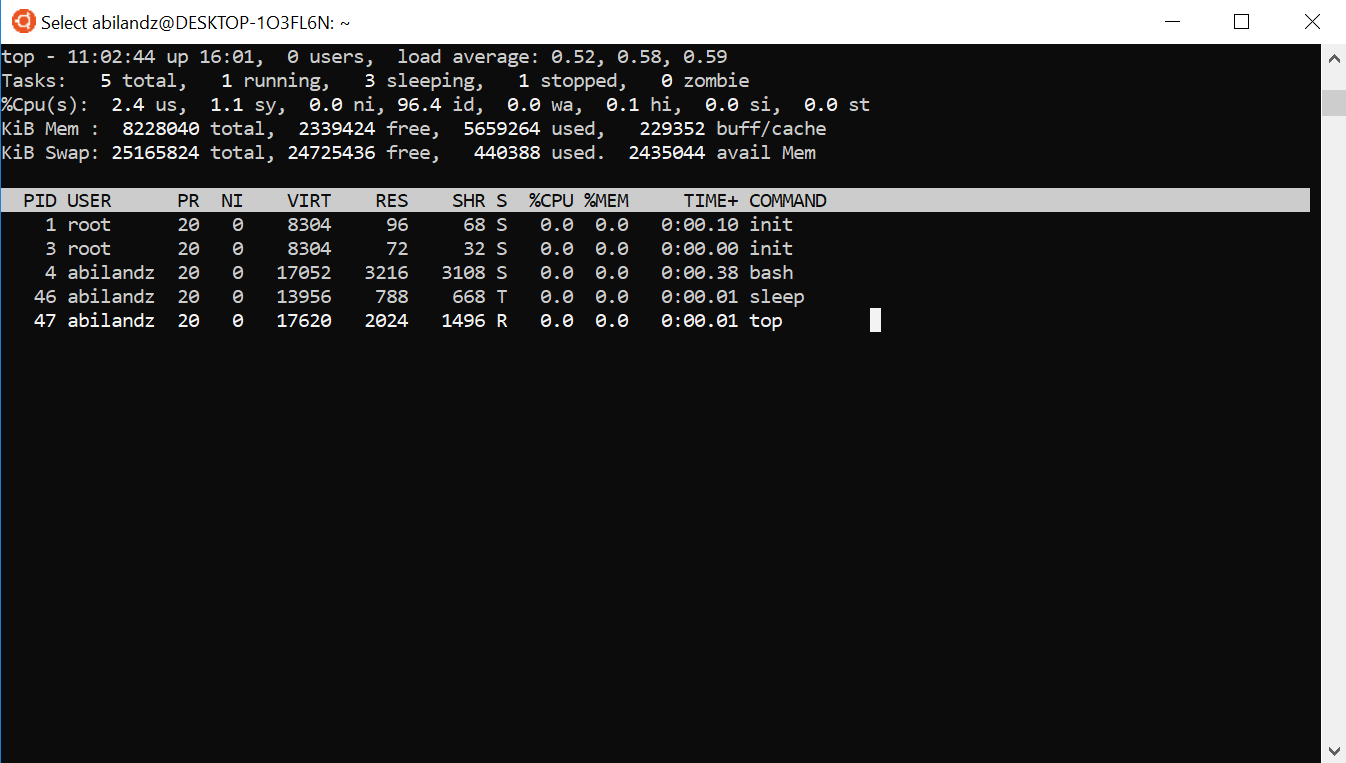
The command top continuously updates the terminal display with the summary of the current status of system resources followed by the list of most CPU-intensive processes (default ordering). The first column contains the PID of each running process, followed by the user’s name, priority of the process, ‘nice’ value of the process, memory and CPU consumption, total running time, etc. In order to parse the output of top programmatically, or to redirect it to some file, we need to run command top in the batch (text) mode via:
top -b
We can dump the output of the top command to some external file with the following syntax:
top -b > topOutput.log
We can also pipe that output to some other command, for instance:
top -b | grep ${USER}
The above code snippet filters out only the information relevant to your own processes.
The command top can be run from any terminal on the computer, and its printout, to a large extent, will be the same in each terminal. On the other hand, the output of the command jobs will be completely different from one terminal to another.
Closely related to the top command is the ps command (‘process status’, see the corresponding ‘man’ pages), which gives only the current snapshot of currently active processes, while top is being continuously updated and can be used interactively. Unfortunately, the flags supported by the ps command differ across different Unix descendants, and to overcome this problem the GNU version of the ps command supports three different styles for options:
- Unix-style parameters: preceded by dash (-)
- BSD-style parameters: not preceded by dash (-)
- GNU long parameters: preceded by double dash (--)
For instance, to see all processes running on the system, we can use:
$ ps -Aflc
F S UID        PID  PPID CLS PRI ADDR SZ WCHAN  STIME TTY          TIME CMD
0 S abilandz 13787 13777 TS   19 -  5861 wait   06:24 pts/0    00:00:00 bash
0 S abilandz 13820 13787 TS   19 -  7940 pause  06:24 pts/0    00:00:00 screen -rd ruidoso
...
Note some additional fields, for instance, PPID is the PID of the parent process, i.e. the process from which the current process was started, and TTY is the terminal number from which the process was started. The parent-child relation among the running processes can be very conveniently inspected with the following:
$ ps --forest
  PID TTY          TIME CMD
22208 pts/4    00:00:00 bash
22667 pts/4    00:00:00  \_ bash
22679 pts/4    00:00:00      \_ sleep
22680 pts/4    00:00:00      \_ bash
22691 pts/4    00:00:00          \_ ps
Another frequent example is the following: How to obtain from the known PID the corresponding command input? For that, this can be used:
$ sleep 10m & sleep 20m &
[1] 3280886
[2] 3280887

# We can now trace back the command input using PID this way:
$ ps -fp 3280886 3280887
UID          PID    PPID  C STIME TTY      STAT   TIME CMD
abilandz 3280886 3246923  0 07:20 pts/33   S      0:00 sleep 10m
abilandz 3280887 3246923  0 07:20 pts/33   S      0:00 sleep 20m
The command input is in the last column, and we can also see that both commands were executed from the same parent process (PPID), which in this example was the same shell with PID 3246923.
For further details of this complex command, see its ‘man’ pages.
In the case you are interested only in the PID of the running process, there is also a command pidof, which takes as an argument only the process name:
$ sleep 10s &
[1] 433
$ pidof sleep
433
This command becomes very handy if there are multiple instances of the same command running in parallel, and we need to get the PIDs of all of them. For instance:
$ sleep 10s & sleep 20s & sleep 30s &
[1] 587
[2] 588
[3] 589
We now have 3 instances of the same command sleep running in parallel. We can get the list of all PIDs corresponding to different instances of the same command with:
$ pidof sleep
587 588 589
The closely related and more powerful command is pgrep, which can also interpret regular expressions in the command names. For the above example, we can use:
$ pgrep -a "sle*"
587 sleep 10s
588 sleep 20s
589 sleep 30s
Other typical use cases of pgrep are given with these examples:
# Print PIDs and command inputs of all running processes of $USER:
$ pgrep -a -u $USER
3104204 root figureQM23_gen.C
3104206 /home/abilandz/ROOT_6/bin/root.exe -splash figureQM23_gen.C
3253577 bash --norc -i
3255550 bash
...

# Print all processes, except the ones belonging to 'root' account:
$ pgrep -a -v -u root
... long list ...

# Print latest executed process of $USER:
$ pgrep -n -a -u $USER
3104204 gedit figureQM23_gen.C
There is also a related command pkill, which can terminate on the spot all running instances of the same command, just by its name. For the above example, we can terminate all 3 instances of the command sleep running in parallel as follows:
$ pkill sleep
[1]   Done                    sleep 10s
[2]   Done                    sleep 20s
[3]-  Done                    sleep 30s
To conclude this section, we remark that one very important process is always listed in the output of the top command and is called init. The process init is the grandfather of all processes on the system because all other processes run under it. Every process can be traced back to init, and it always has a PID of 1.
Moving job execution from background to foreground, and vice versa
We have already seen how the job execution can be sent to the background by appending the special character & to the command input. A similar functionality can be achieved with the Bash built-in command bg, only the syntax and typical use cases are slightly different. Typically, the command bg is used after the job was started in the foreground, but then for one reason or another, we need to regain control over the terminal in order to do something else. The trivial solution is to terminate the running job and then restart it later from scratch. But there is a more elegant and efficient solution, which amounts to the following two generic steps:
- Suspend the foreground job with
Ctrl+Z - Resume (not restart!) the suspended job in the background with the bg command
This is best illustrated with a concrete example. Imagine that we have started in the foreground the following command (we stress out again that the following discussion applies to any other command, sleep is used only because of its simplicity!):
sleep 10m
Now the terminal is blocked for 10 minutes because the command sleep is running in the foreground. We can, however, suspend the execution of the command sleep by pressing Ctrl+Z and regain control of the terminal. After we have regained control over the terminal, we can start executing other commands. In meanwhile, the suspended command does not do anything:
$ jobs -l
[2]+    15 Stopped                 sleep 10m
After pressing Ctrl+Z, the job was not killed or terminated, it was suspended. The job remains in exactly the same state as it was at the time of the suspension. The suspended job does literally nothing, it is on hold until its execution is resumed. From the user’s perspective, the execution of this job appears to be paused. In the output of command jobs -l the state description ‘Stopped’ is a bit misleading, and ‘Paused’ or even ‘Frozen’ would be a much better word to describe the state of the job after we suspended it with Ctrl+Z. The suspended job will no longer use any CPU, but it will, however, still claim the same amount of RAM. This last fact implies that we can restart it anytime later, and it will continue where it stopped.
To restart the suspended job in the background, we can use the following generic syntax:
bg %jobNumber
To restart in the background the above sleep command, whose job number is 2, we need to use:
bg %2
There is an alternative syntax, which is more limited in scope but sometimes can be nevertheless more convenient — to restart the suspended job in the background we can also use:
bg %commandName
If we have only one instance of a given command running and suspended, it suffices to specify only the name of that command to restart it in the background, i.e. it is not needed to specify all options and arguments. However, if we have multiple instances of the same command running with different options and arguments, the whole composite command input needs to be enclosed within strong quotes, for instance:
bg %'sleep 10m'
Reminder: If you have forgotten with which options and arguments you have started the command, you can retrieve that information from any terminal with
$ ps -f
UID        PID  PPID  C STIME TTY          TIME CMD
abilandz 21469 20045  0 09:31 pts/4    00:00:00 sleep 10m
...
while within the same terminal in addition you can also use the jobs -l command.
If we have multiple instances of the same command running with exactly the same options and arguments, clearly the 2nd version becomes ambiguous. However, we can in that case still use the first syntax and restart the suspended job in the background via its job number, which is always unique.
After restarting the suspended job in the background, we see the following:
$ jobs -l
[2]+    15 Running                 sleep 10m &
This is precisely what we wanted to achieve: We have suspended with Ctrl+Z the job running in the foreground which was blocking the terminal input, and then restarted its execution in the background with the command bg %jobNumber. While that job is now running in parallel in the background, we can do our thing in the terminal again. As the last remark, we stress that the command bg can accept as an argument the job number, but not its PID.
A closely related command is the Bash built-in command fg. This command moves the jobs running in the background to the foreground. Before discussing its syntax, we first highlight the following important fact: It is impossible solely by using Bash built-in features to bring to the foreground a process running in the background in the current shell instance if it was not started in the background from the current shell instance. Basically, this means that you cannot, in the current terminal, take over a process that was started in a different terminal. To achieve that level of flexibility, there are specialized programs available that allow us to move other programs around from one shell instance to another, such as screen.
Looking at this from another angle, it makes perfect sense, but only after we realize the following subtle difference between job and process: a job can be a group of processes, but not vice versa. When we suspend a job via its job number, we suspend all processes in that job. When we suspend a process via its PID, we suspend only that particular process.
After using command fg, the background job is continuing to run in the foreground and is, therefore, taking over the control over the terminal. Generically, the syntax of fg command is:
fg %jobNumber
or the alternative version
fg %commandName
The explanation for both versions of the syntax is the same as for the bg command outlined previously, and we do not repeat it here.
We illustrate the usage of the fg command with the following simple example. First, we launch the command sleep (or any other command) in the background:
sleep 30m &
The relevant line in the output of the jobs -l command might look like:
[5] 5194 Running sleep 30m &
If we want to bring to the foreground the execution of this background job, we need to use either:
fg %5
or
fg %'sleep 30m'
If used without arguments, both bg and fg commands act on the most recent job.
We finalize this section by mentioning that Bash provides the two special variables relevant in this context:
$$: this variable holds the PID of the currently running process$!: this is the PID of the last job sent to the background
For instance, we can programmatically close the current terminal session by using:
kill -9 $$
The above line can be placed at the end of the script, if after the script execution we do not need that terminal session any longer. The meaning of option -9 to command kill will be clarified a bit later.
The second special variable, $!, has a very neat use case in combination with the Bash built-in command wait. Quite frequently, we can release the execution burden on the current script by sending part of the execution to separate processes to run in parallel in the background. We can hold the execution of the main script, and continue only when the last job sent to the background has terminated, with the following syntax:
wait $!
We can also specify as arguments to the wait command the IDs of specific jobs running in the background.
However, it can happen that the last job sent to the background has terminated before some other jobs that were sent to the background earlier. This problem is fixed with the even simpler syntax:
wait
With the above syntax, the execution of the main script will wait until all jobs running in the background are terminated. This feature is extremely important on multicore machines: Whenever your script is facing some CPU-intensive task, that task can be split across multiple processes, and then each process can be sent independently to the background:
commandInput1 &
commandInput2 &
...
wait
With the above generic syntax, while processes commandInput1, commandInput2, …, are all running in parallel in the background, the main script waits with further execution. Only when all background processes have terminated will the main script proceed with further execution.
The classical example when the above functionality can be used is the case when we need to process large datasets. The starting large dataset can be split into subsamples, and then each subsample can be analyzed in parallel, schematically:
commandName subsample1 &
commandName subsample2 &
...
wait
The main script waits for all jobs running in parallel in the background to terminate, then merely collects the output result of each job, and combines them to obtain the final, large statistic result. Clearly, this feature can considerably speed up the script execution on multicore machines, and all this can be achieved programmatically.
Sending signals to the running processes
We have already seen that we can suspend the running job by hitting Ctrl+Z and that we can terminate the running job by executing the command kill -9 processPID in the terminal. Conceptually, there is not much of a difference in what is happening in these two cases, and these two examples are just a small subset of signals that we can send to the process. In this section, we cover in detail from the user’s perspective how the signals can be sent programmatically to the running processes, and modify their running conditions on the fly. In the next section, we will cover this topic from the developer’s side, i.e. we will discuss the code implementation needed to enable the process to receive and handle the signals while running.
Loosely speaking, a signal is a message that a user sends programmatically to the running process. One running process can also send a signal to another running process. A signal is typically sent when some abnormal event takes place or when we want another process to do something per explicit request. As we already saw, two processes can communicate with pipes |. Signals are another way for running processes to communicate with each other.
All available signals have:
- numbers (starting from 1)
- names
To get the list of all signals on your system by name and number, we can execute:
kill -l
The output could look like:
 1) SIGHUP       2) SIGINT       3) SIGQUIT      4) SIGILL       5) SIGTRAP
 6) SIGABRT      7) SIGBUS       8) SIGFPE       9) SIGKILL     10) SIGUSR1
11) SIGSEGV 	12) SIGUSR2     13) SIGPIPE     14) SIGALRM     15) SIGTERM
16) SIGSTKFLT   17) SIGCHLD     18) SIGCONT     19) SIGSTOP     20) SIGTSTP
21) SIGTTIN     22) SIGTTOU     23) SIGURG      24) SIGXCPU     25) SIGXFSZ
26) SIGVTALRM   27) SIGPROF     28) SIGWINCH    29) SIGIO       30) SIGPWR
31) SIGSYS      34) SIGRTMIN    35) SIGRTMIN+1  36) SIGRTMIN+2  37) SIGRTMIN+3
38) SIGRTMIN+4  39) SIGRTMIN+5  40) SIGRTMIN+6  41) SIGRTMIN+7  42) SIGRTMIN+8
43) SIGRTMIN+9  44) SIGRTMIN+10 45) SIGRTMIN+11 46) SIGRTMIN+12 47) SIGRTMIN+13
48) SIGRTMIN+14 49) SIGRTMIN+15 50) SIGRTMAX-14 51) SIGRTMAX-13 52) SIGRTMAX-12
53) SIGRTMAX-11 54) SIGRTMAX-10 55) SIGRTMAX-9  56) SIGRTMAX-8  57) SIGRTMAX-7
58) SIGRTMAX-6  59) SIGRTMAX-5  60) SIGRTMAX-4  61) SIGRTMAX-3  62) SIGRTMAX-2
63) SIGRTMAX-1  64) SIGRTMAX
When we are executing in the terminal:
kill -9 somePID
we are essentially sending the signal number 9, i.e. the signal with the name SIGKILL, to the running process whose PID is somePID . For instance, if we start a process in the background:
$ sleep 10m &
[1] 9485
we can terminate it either with
kill -9 9485
or with
kill -SIGKILL 9485
In both cases, we get the same result:
$ jobs -l
[1]+  9485 Killed                  sleep 10m
For the most frequently used signals, there are also the case-insensitive shortcut versions, e.g.:
kill -KILL 9485
kill -kill 9485
From the table above, we see there are 64 different signals we can send to the running process. Note, however, that some signals are typically used only by the operating system to tell the process that something went wrong (e.g. division by zero was encountered). As another remark, we indicate that it is somewhat more portable to use a signal by its name instead of by its number across different platforms — it is unlikely that the name of the signal, like KILL, will be interpreted in any other way, however, number 9 can be.
After we have illustrated the simple use case of Bash built-in command kill, let us now elaborate on it in more detail. The command kill is used to send signals to the already running job, or to any new job. If used without arguments, it will send the default signal to the running process. That default signal is TERM (‘terminate’, number 15), which usually has the same effect as the signal INT (‘interrupt’, number 2). Whenever we execute the following command in a shell:
kill somePID
we are essentially sending the signal TERM (‘terminate’) to the running process:
kill -TERM somePID
On the other hand, when we hit Ctrl+Z to suspend a running process, we are essentially using a shortcut for the following command input
kill -TSTP somePID
The signal TSTP (‘suspend’) has a signal number 20, so pressing Ctrl+Z is equivalent to the following:
kill -20 somePID
When we hit Ctrl+C to interrupt the running process, we are using a shortcut for sending the INT signal. Pressing Ctrl+C is therefore equivalent to:
kill -INT somePID
or a shorter version (see the above table):
kill -2 somePID
Yet another way to terminate a running process is to send the QUIT signal (number 3):
kill -QUIT somePID
This case typically produces the message ‘core dumped’, for instance:
$ sleep 20m &
[2] 11126
$ kill -QUIT 11126
$ jobs -l
[2]- 11126 Quit                    (core dumped) sleep 20m
The message Quit (core dumped) indicates that there is a file called ‘core’ which contains the image of the process to which you sent a signal. The name ‘core’ is a very old-fashioned name for computer’s memory, and ‘core dumps’ are generated when the process receives certain signals (such as QUIT, SEGV, etc.), which the Linux kernel sends to the process when it accesses memory outside its address space.
Although it sounds trivial, it actually makes a big difference with which signal we kill the job. Recommended ordering of signals used to terminate the job is the following:
- kill : the default signal is
TERM(similar toINT). If we kill the process this way, we still give a chance to the process to clean up (for instance, to delete all temporary files it was using while running) before terminating. May or may not terminate the running job. - kill -QUIT : this dumps the process memory image in the file named ‘core’, which can be used for debugging. May or may not terminate the running job.
- kill -KILL : ‘last-ditch’, we use this as the very last resort. If we send this signal to the process, the process is killed by the operating system now and unconditionally. The process cannot clean up its own work area. The signal
KILLalways succeeds and terminates the running process, whatever the consequences are. If even this signal has failed, that means that the operating system has failed.
We remark that sending signals to the running job is not only about terminating its execution. For instance, we can resume programmatically the suspended job by sending it the signal CONT (number 18). That is illustrated with the following sequence:
$ sleep 44m &
[1] 12254
$ jobs -l
[1]+ 12254 Running                 sleep 44m &
$ kill -TSTP 12254
$ jobs -l
[1]+  Stopped                 sleep 44m
$ kill -CONT 12254
[1]+ 12254 Running                 sleep 44m &
In the next section we will see how we can further customize the signal catching.
At the end of this section, we stress that, since the command kill can accept PID as an argument that is system-wide available, we can send signals to the jobs running in one terminal by executing the kill command with the specified signal in another terminal. In practice, if the running process has crashed and frozen the current terminal, we can still try to recover it by using its PID and sending it signals with the kill command from another terminal.
Catching signals in your own code
We have already seen how we can send signals to the process, taking for granted that the implementation of that process has the relevant lines in the source code that can handle particular signals. In this section, we clarify what is happening behind the scenes when a process receives a signal.
We introduce and discuss first the commands that are used to handle programmatically the signal input. This can be achieved by using the Bash built-in command trap. In general, programs can be set up to trap specific signals and interpret them in their own way. The command trap is used mostly for bullet-proofing, i.e. ensuring that your program behaves well under abnormal circumstances. The generic syntax of the trap command is:
trap someCommand signal_1 signal_2 ...
The above generic syntax is interpreted as follows: When any of the signals signal_1, signal_2, ..., is received, the following sequence follows:
- pause the program execution and execute command someCommand
- resume the program execution
After the execution of someCommand has terminated, the program execution resumes just after the command that was interrupted. In this context, someCommand can also be a script or a function. The signals signal_1, signal_2, ..., can be specified either by signal name or by signal number.
The usage of trap is best illustrated with examples. We use the script named trapExample.sh with the following content:
#!/bin/bash

trap "echo Hi there!; echo How is life?" USR1
trap "pwd; ls" USR2

while :; do
 date
 sleep 10s
done

return 0
This script does nothing except that every 10 seconds prints the time stamp via the date command. We remark that it is not possible to catch via trap the arbitrary user-defined signal, we have to use the standard 64 signals enlisted with kill -l (or trap -l). The closest we can get it to use USR1 and USR2 signals (numbers 10 and 12) as the standard supported signals reserved for the user’s custom input.
We send this script to execute in the background via:
$ source trapExample.sh &
[1] 87
Every 10 seconds on the screen we get the timestamp printed, and in this simple example, that is the proof that our script is running. Now, while the script is running in the background, we start to communicate with our script by sending the signals to it:
kill -USR1 %1
The script pauses its execution, and responds to the signal USR1 to produce the following output:
Hi there!
How is life?
Our signal was literally trapped by trap command, and whatever we have defined to correspond to the signal USR1, will be executed. After that signal is processed, the script resumes normal execution, and we see every 10 seconds again on the screen the timestamp printed.
After sending the signal ÙSR2:
kill -USR2 %1
the script execution is paused again — this time the two commands pwd and ls are executed, and the script resumes execution.
After sending these two signals, the script is still running in the background:
$ jobs -l
[1]+  87 Running                 source trapExample.sh &
Therefore, by using the trap mechanism, we can programmatically and on-the-fly modify the behaviour of the running program without terminating its execution, changing something in the code, and restarting from scratch. Just like we have implemented traps for signals USR1 and USR2, we can implement our own version of traps for the more standard signals like ÌNT, TERM, etc.
We conclude this section with a few additional remarks. The traps can be reset, by using the following generic syntax:
trap - someSignal
Signals sent to your script can be ignored by using the following syntax:
trap "" someSignal
For instance, if we want to prevent Ctrl+C (which is a shortcut for kill -INT) from terminating the script execution, at the beginning of the script we need to add:
trap "" INT
With the above implementation, whenever signal INT is received, the script will literally do nothing about it.
The only signal that cannot be trapped, and therefore, in particular, that cannot be ignored, is KILL. That explains why kill -KILL or kill -9 will always and unconditionally terminate your running program.